The same two-word error – “CML error” – can mean a missing bracket or a solver that ran out of time on an unsatisfiable model. One of those takes thirty seconds to fix. The other can swallow an afternoon if you start in the wrong place.
The main problem is that the message you see and the cause underneath it are often two different things, sitting in two different layers of the model.
This article is a reading guide. It sorts CML errors by when they appear, shows what each kind is usually telling you, and points to where to look first – so the next one stops being a black box and becomes a clue.
Summary
CML errors fall into three stages, easiest to hardest to diagnose: errors at model save, at model activation, and at runtime during configuration.
Save-time errors are syntax, type, and structure problems – the message usually names the block, so read it before touching the catalog.
Activation errors involve the model and the product data behind it (hierarchy, associations, attributes, permissions).
Runtime errors are the tricky ones: the UI message is vague because the cause is a combination of constraints, context, and data – and this is where the Apex debug log earns its place.
Why “CML Error” is rarely one thing
Constraint Modeling Language (CML) is the language behind the Product Configurator in Salesforce Revenue Cloud. A CML model isn't a script that runs line by line – it's a set of rules a solver tries to satisfy all at once. So one error can come from the code, the product data, the context, the user's selections, or the way they combine when the solver runs.
This matters more as teams move off the end-of-sale Salesforce CPQ to Agentforce Revenue Management. More models run on CML now, and it comes from all over: written by hand, generated by the Visual Builder, or inherited from an older model.
Reading an error means knowing which of those layers it belongs to.
The fastest way to narrow it down is to ask when the error appeared. A CML model breaks at three moments: when you save it, when you activate it, and when someone configures a product. They also run from easiest to hardest to diagnose – so we'll take them in that order.
Stage 1: CML errors when you save the model
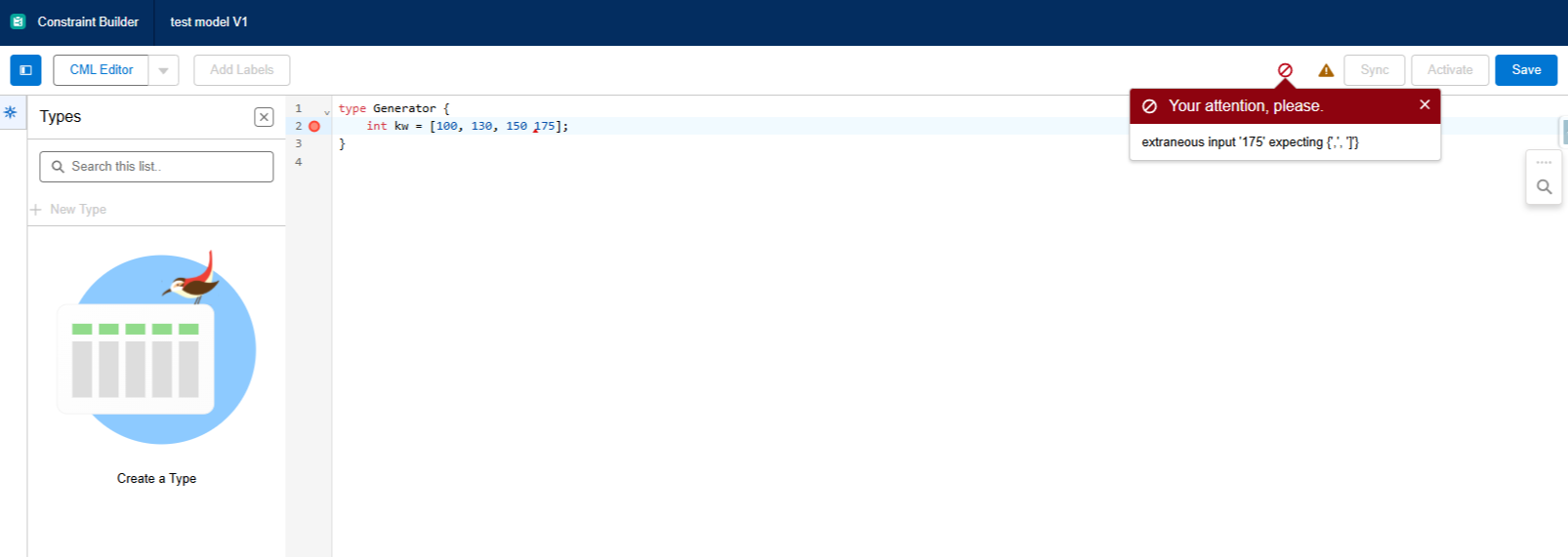
This is the first place mistakes appear, while the model is still being written to match business requirements. The errors here are syntax and compilation problems – typing, structure, constraints, and rules. Typical causes include:
an incorrect keyword
a missing bracket
an invalid data type
a missing variable
an incorrect annotation
wrong operator usage
incompatible operand types
an incorrect expression structure
incorrect relation usage
incorrect use of an aggregation function.
How to read them: When a save fails, the system almost always returns a readable message that names the block where the problem sits – and you have an advantage the later stages don’t give you: you just made the change, so you already know roughly where to look.
At this stage the message usually contains everything you need; the fix is to study it, locate the spot it points to, and correct it.
The common mistake: reaching for the data or the setup before re-reading the code. At this stage the answer is almost always in what you just changed – start there, with the message and your last edit.
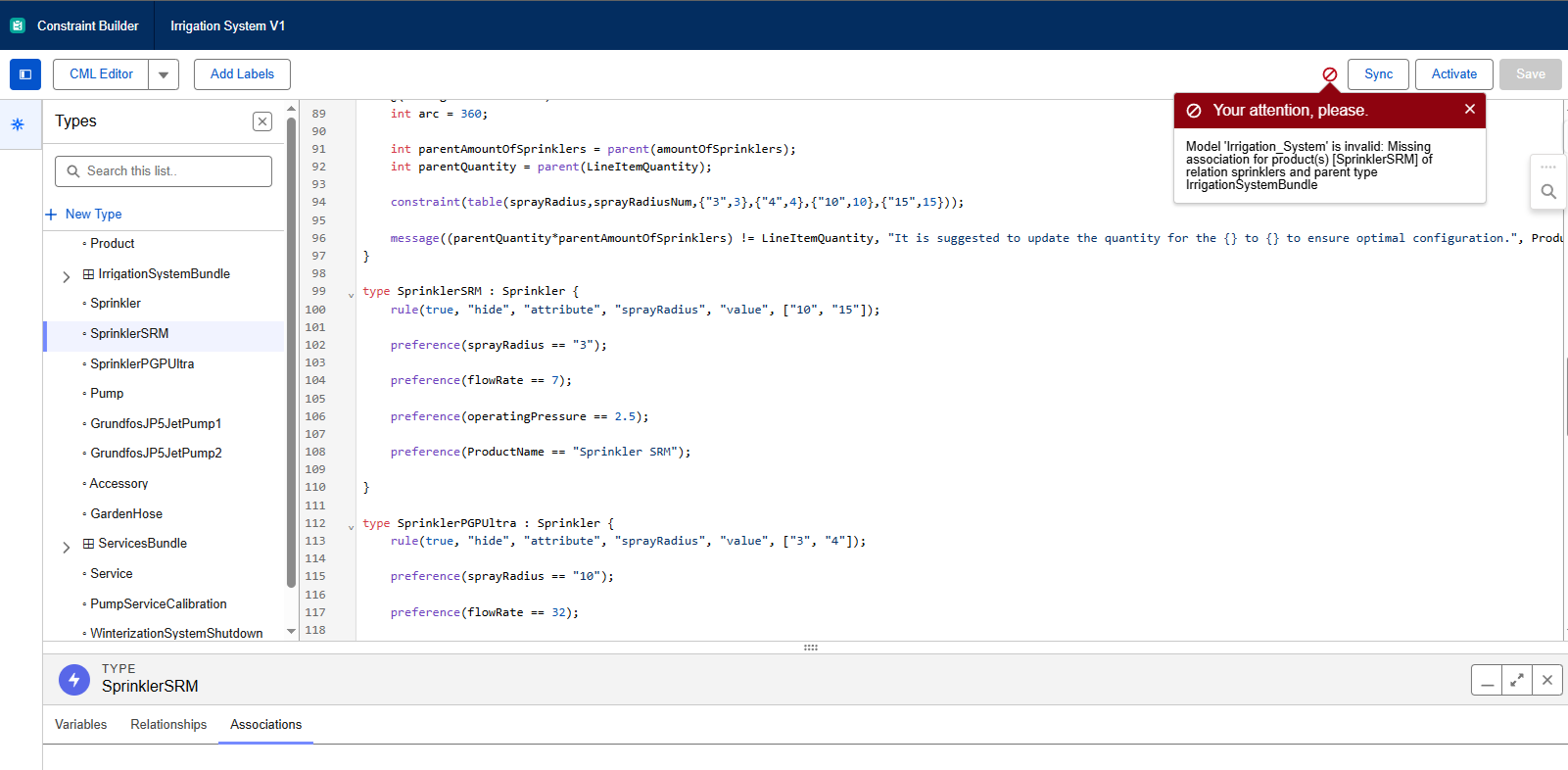
Activation is where the model meets the data it depends on. The system validates the model together with the product setup – the product hierarchy, the associations between products, attribute definitions and their status, and product classifications – so the errors change character.
They can come from the model, but they can equally come from the catalog underneath it. Typical causes include:
incorrect product hierarchy relations.
missing product type assignments.
missing relationship associations.
missing object permissions when table constraints reference external records.
How to read them: As at save time, the message gives you something to work with, but here it can point in more than one direction: the same error might trace back to the model, to PCM configuration, or to outdated or incorrect data. The message narrows the search; it doesn’t always close it.
The common mistake: The mirror image of stage one. Here teams often dig into the CML when a large share of activation errors actually live in PCM – a relation that was never associated, a product type left unassigned, an attribute in the wrong status.
If a save passed but activation fails, widen the search to the data. (For the table-constraint case specifically, our walkthrough of table constraints in CML covers the permission and object-access setup that trips activation up most often.)
Stage 3: Errors during configuration (runtime)
This is where reading gets genuinely hard. A runtime error depends on the steps the user took, on how carefully the CML was built – whether invalid combinations were handled, whether domains were bounded – on the size of the model, and on dependencies like context properties and custom objects.
The cause is frequently not one line but the interaction of several, which only collided on this particular configuration path. So the message stops being self-explanatory.
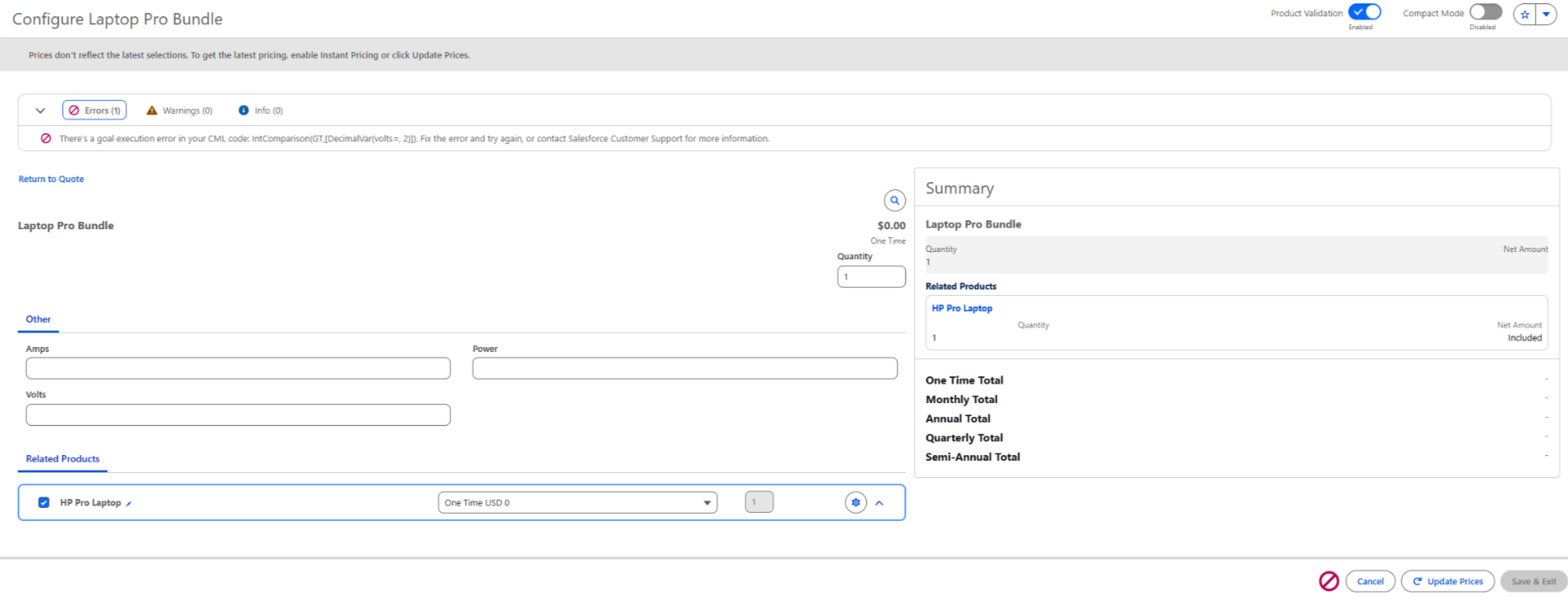
A common pattern is one that looks like one thing while the real cause is another: the UI surfaces a goal execution error citing a specific comparison – something close to “There’s a goal execution error in your CML code: IntComparison(GT,…)” – while the underlying event is a timeout. The line named in the message is where the solver gave up, not necessarily where the problem began. To see the difference, you stop reading the UI and start reading the Apex debug log.
Reading the solver statistics
The debug log is verbose – it dumps the whole configuration tree – but the part that matters is small. Salesforce documents how to enable and read it for CML; for diagnosis, you want the RLM_CONFIGURATOR_STATS block and the final error block. Here is the meaningful slice of a real log for a configuration that failed:
RLM_CONFIGURATOR_STATS|[ {
"Number of Backtracks" : "2118036",
"Total Execution Time" : "10001ms",
"Number of Variables" : "8",
"Number of Constraints" : "3"} ]
RLM_CONFIGURATOR_END|[ {
"errorMessage" : "There’s a goal execution error in your CML code:
IntComparison(GT,[DecimalVar(volts=, 2)])...",
"messageKey" : "ReachedTimeLimitDuringGoalExecutionBecauseOf"} ]
Read top to bottom, the story is clear. The UI blamed a comparison on volts, but the messageKey is ReachedTimeLimitDuringGoalExecutionBecauseOf – a timeout. Total Execution Time of 10001ms confirms the solver hit its limit, and Number of Backtracks of over two million shows why: on a model with only eight variables and three constraints, the solver explored an enormous number of dead ends before time ran out.
The fix is not in the line the UI named; it is in the modeling – bounding domains and validating source values before the heavy constraint runs.
As a rough reference, Salesforce’s guidance treats a healthy configuration as running under 100 ms with fewer than 1,000 backtracks. Numbers like the ones above are several orders of magnitude past that.
The method that makes this reliable: replay the configuration step by step with the log open, and watch how the variables and metrics change after each action. The step where time or backtracks jump is the step that introduced the problem – far more precise than the UI error alone.
Because so many runtime errors are really performance problems wearing an error message, the patterns behind them are worth knowing in advance. Three of our articles go deeper:
Errors with the code and the fix: a downloadable reference
The Veloce team has collected the most common CML errors across all three stages into a downloadable reference: each pairs the exact message with a minimal CML snippet that reproduces it and a short cause-and-fix – from undefined variables at save time, through table-constraint permissions at activation, to solver timeouts at runtime.
Get the CML Error Troubleshooting Guide – common save, activation, and runtime errors, each with the cause and the fix.
Whether the error showed up in the CML Editor or the configurator, the order is the same:
Read and classify. Identify the stage – save, activation, or runtime – and the clues in the message. Check the steps you took, the PCM settings, and the log before touching code.
If the message is clear, fix it at the right layer. A save-time syntax error is a CML fix; an activation error may be a PCM or data fix.
If the message is vague, open the debug log. Replay the configuration step by step and find where the solver metrics jump.
Then go to the problem area with that in hand.
A few habits help: treat CML errors as model-state errors, not just broken lines; use the CML Editor even for Visual Builder rules, since it exposes the generated logic; define explicit domains and defaults so the solver has less to search; scope constraints close to the products they affect; and add business-readable messages for expected invalid combinations.
What teams get wrong
Four assumptions cause most of the wasted time on CML errors.
The myth
The fact
The error points to the broken line
A compile error does, but a runtime error usually reflects an unsatisfiable state – a mix of constraints, context, structure, and attributes. The named line is just where the solver gave up.
A timeout means Salesforce is slow
It almost always comes from the model: unbounded domains, broad constraints, too many optional choices, or unoptimized Visual Builder output. The solver has too many paths, not a slow platform.
Visual Builder is safer than the CML Editor
Visual Builder is easier to start with but won't follow best practices on its own. Larger models need the editor to keep the generated logic optimized.
CML can handle all business logic
It isn't the right layer for every rule. Forcing a complex mechanism in when a simpler path exists usually costs you later — often in performance.
When reading the error isn't enough
Some errors won't resolve from the message, or even a single log line. You may need the debug log, the model version, the product setup, the context, and a reproducible scenario together.
And because Salesforce releases can change configurator behavior, an assumption that held last release is worth re-checking after an upgrade – migrated logic especially, since converting old rules to CML isn't just a syntax swap.
Final thoughts
A CML error message is only a starting point. A compile error lands fairly honestly on its own line – a runtime error points at where the solver stopped, which can be a long way from where the trouble started. Reading well means knowing which of those you are looking at before you decide what to change.
When a message won’t resolve from the UI alone – when it takes the debug log, the model version, the product setup, and a reproducible scenario together to see the picture – that is the kind of problem the Veloce CML health check engagement is built to untangle.
FAQ: CML Errors in Salesforce Revenue Cloud (ARM)
The error names a specific line. Isn't that where the problem is?
Sometimes. A save-time compile error usually does point at the syntax. At runtime, the named line is just where the solver gave up – the real cause may be a mix of constraints, context, and product structure. Classify the stage first.
My configurator shows a goal execution error, but the line it names looks fine. Why?
That usually means a timeout, not a logic error. Check the debug log: if the messageKey is ReachedTimeLimitDuringGoalExecutionBecauseOf with execution time at the limit and backtracks in the hundreds of thousands, it's a performance problem – the named line is just where time ran out.
Activation failed but the CML saved fine. Where do I look?
At the data, not the code. Activation validates the model against the product setup – hierarchy, associations, attribute status, and (for table constraints) object permissions. Usually it's a missing relationship association or an unassigned product type in PCM.
How do I know if a slow configuration is a CML problem or a platform one?
Execution time and the backtrack count in the debug log. Time at the limit, with backtracks in the thousands or more, points to the model. Low backtracks with slow execution point elsewhere – PCM, pricing, or an integration.