Ramp Deals in Salesforce ARM: Multi-Year Contracts with Year-over-Year Changes
How to model multi-year deals in Salesforce ARM with Ramp Deals for Lines and Groups – quantity, price, and product mix that change by year, plus what happens to assets, amendments, and renewals.
Elena Savenko
Salesforce Developer
7 min read
·
September 11, 2026
If you've ever quoted a multi-year enterprise deal in Salesforce, you know a three-year contract is rarely three years of the same thing. 100 licenses in year one, 200 in year two, 300 in year three on a different product mix.
It's one agreement, but its shape changes every year – and that shape used to be hard to capture. Reps built a separate quote for each year, or set a ramp on a single product and hoped the deal never grew past one SKU. Bundles and usage products broke it entirely.
Ramp Deals in Agentforce Revenue Management fix this by dividing one agreement into time-based segments – and the Winter '26 release added a second, more flexible way to build them. This article explains how it works, how to configure it, and what to watch for with pricing, assets, and amendments.
Summary
A ramp deal is one agreement where quantity, price, discount, or product mix changes over time, split into time-based segments instead of separate yearly quotes.
Ramp Deals for Lines put the ramp on the product and fit one simple single-SKU subscription. Ramp Deals for Groups put it on the quote and handle multiple products, bundles, and usage together.
Salesforce recommends Group ramps for new implementations and provides an official migration path from Line ramps.
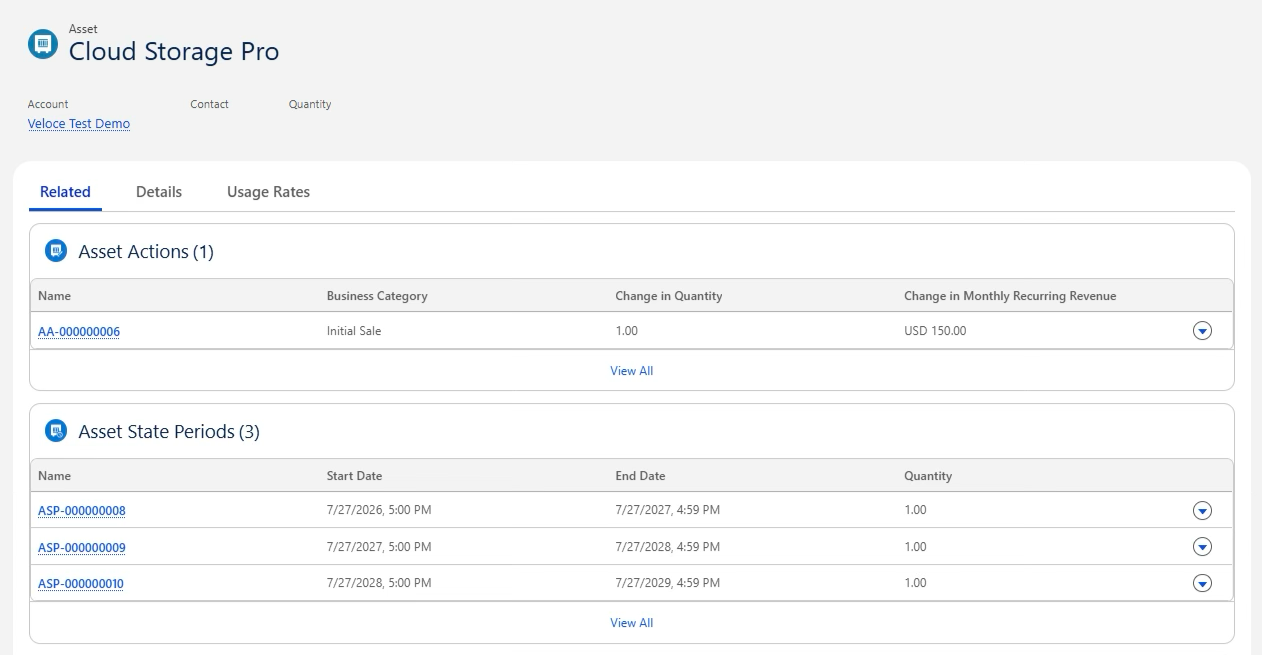
A ramped subscription becomes one Asset for the full lifecycle, with each segment recorded as an Asset State Period, which is what makes amendments time-aware.
What is a Ramp Deal in Salesforce ARM?
A Ramp Deal is a single sales agreement in which price and volume vary across defined time periods.
Rather than creating unrelated quotes or subscriptions for each year, ARM divides the agreement into ramp segments – each a specific window during which a particular set of prices and quantities is in effect. The classic shape looks like this:
Segment
Quantity
Commercial terms
Year 1
100 licenses
Introductory discount
Year 2
200 licenses
5% uplift over base
Year 3
300 licenses
Further uplift or a revised product mix
ARM offers two ways to build this: Ramp Deals for Lines, where the ramp logic is defined on a single product, and Ramp Deals for Groups, where several products ramp together on the quote. Choosing between them is the first real decision, so it is worth being precise about what each one can and cannot do.
Lines vs. Groups: which mechanism to reach for
With Ramp Deals for Lines, the ramp schedule is a property of the product. An admin sets up product ramp segments in Product Catalog Management first, and only products explicitly configured that way are eligible. It works cleanly for one simple, single-SKU subscription – and stops there. No bundles, no usage products, no group-level discount.
Ramp Deals for Groups moves the logic to the quote. A user places several products into a Quote Line Group, marks that group as ramped, and clones it forward into later periods. Any eligible product can join a ramp schedule without product-level setup, which is what unlocks the harder scenarios:
Multiple products following one shared commercial timeline
Bundles whose configuration changes year by year
Usage-based products added partway through the contract
Group-level discounts and uplifts, plus a different product mix per year
Salesforce recommends Group ramps for new implementations and provides an official migration path from Line ramps. Line ramps remain supported for simpler cases. The short version:
Question
Ramp Deals for Lines
Ramp Deals for Groups
Where does the ramp live?
On the product (catalog)
On the quote (group segment)
Multiple products per schedule?
No
Yes
Bundles / usage products?
No
Yes
Group-level discount or uplift?
No
Yes
Best for
One simple, single-SKU deal
Multi-product, bundle, or usage deals
Configure ramp segments in Ramp Deals for Lines
With Line ramps, the ramp lives on a single quote line. The product shows up as one line item split into segments, each with its own price, quantity, and discount.
Only products explicitly set up for it are eligible: an admin first configures product ramp segments in Product Catalog Management. One of those segment types, Free Trial, lets you offer a trial at no additional cost.
Before creating a product ramp segment, turn on Ramp Deals for Lines in Quotes and Orders.
From Setup, in the Quick Find box, find and select Revenue Settings.
Turn on Ramp Deals for Lines in Quotes and Orders.
To create a product ramp segment:
From the App Launcher, find and select Product Catalog Management
⇣
From the product list, click the simple product you want to ramp
To try the product at no additional cost for a specified duration, under Segment Type select Free Trial, enter a trial duration, and select the duration type. For example, to offer a 1-month trial at no additional cost, enter 1 in the Trial Duration field and select Month under Duration Type.
To create a segment for a specific number of years, select Yearly under Segment Type. Leave the Trial Duration and Duration Type fields blank.
To create a segment for a custom duration, select Custom under Segment Type. Leave the Trial Duration and Duration Type fields blank.
Save your changes.
Important! To associate a trial segment at no additional cost with a product, first associate a yearly or custom segment with that product.
Add the product line to the quote. Add the term-based subscription product from the catalog to the quote lines.
Open the line and enable ramping. On the quote line, set the Start Date and End Date for the full term and mark the line as ramped. This defines the outer boundary of the line's ramp schedule.
Create ramp segments on the line. Split the line into segments, each with its own start date, end date, quantity, and price. For the 100 → 200 → 300 example:
Segment 1: 100 qty, Year 1 dates
Segment 2: 200 qty, Year 2 dates
Segment 3: 300 qty, Year 3 dates
Set per-segment pricing. Apply the discount/uplift per segment (e.g., discount Y1, +5% Y2, +10% Y3).
Verify Quote Line Items. Each segment materializes as a separate dated Quote Line Item on the quote.
Considerations for product ramp segments:
⮕ You can associate only static simple and configurable simple products with ramp segments.
⮕ You must assign a term-defined product selling model to a product and then use the combination of the term-defined product selling model and the product to create a ramp segment.
⮕ A product can have only one ramp segment of the same segment type - for example, a product can have only one yearly product ramp segment.
Configure ramp segments in Ramp Deals for Groups
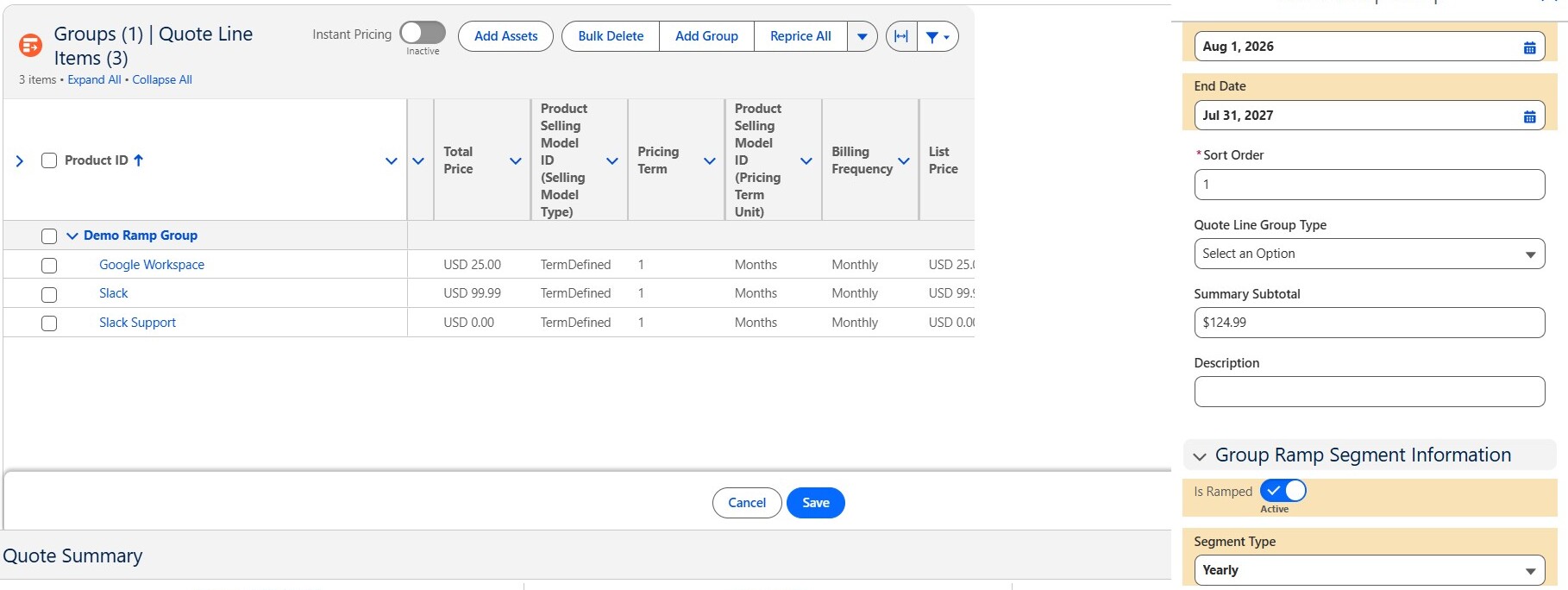
With Group ramps, the ramp lives on the quote, not the product. You ramp a whole quote line group as one segment - price, quantity, discount, and product mix can change per period - then clone it into Year 2, Year 3, and beyond. No separate ramp schedule on each product.
What problem Ramp Groups solve
Traditional line-level ramping works for a single subscription product with a predefined product ramp. It breaks down when deals include:
Multiple products that must ramp together
Bundles with year-by-year configuration changes
Usage-based products added mid-contract
Shared commercial terms (one discount or uplift for a whole year)
Ramp Deals for Groups moves ramp logic from the product to the group segment. Any eligible product can participate in a ramp schedule without product-level ramp segment setup.
Prerequisites and org settings
Before using ramp groups, enable the Revenue Settings prerequisites: Groups in Quotes and Orders, Clone Quotes and Orders (needed to clone segments), and Ramp Deals for Groups in Quotes and Orders.
For advanced cases you can also turn on Multiple Ramp Schedules Per Transaction (up to 10 independent schedules per quote or order) and Trial Segments for Group Ramp Schedules.
On the UI side, add the Sales Transaction Line Editor (LWC) to your quote and order pages with the needed fields as columns, and give users a Revenue Management permission set that allows quoting and pricing in the line editor.
With the settings in place, build the ramp:
Add the lines from the catalog
⇣
Click Add Group to place them in a Quote Line Group
⇣
Open the group in the Sales Transaction Line Editor side panel and set:
⇣
group name
⇣
start and end dates
⇣
Is Ramped
⇣
Segment Type (Yearly or Custom)
After that save your changes. Transaction Management creates a ramp schedule and turns the group into the first segment.
To add the next segments, click Show more actions on the last segment and select Clone Segment. Pick which lines to copy - term-based selling model products are the ramped lines. Leave one-time items in Year 1, then repeat for Year 3.
What Ramp Groups allow you to do
Two things matter most here. First, you ramp several products in one move: put them in a group, mark it ramped, set the dates, and clone that block into later years. Second, you price at the group header – a Discount (% or amount) that cascades to eligible child lines, and a Unit Price Uplift for the year – with the option to still override a single product on the line.
Out of the box, year-over-year uplifts apply against the base price and do not compound on the prior year. True compounding (5% → 10.25% → 15.76%) needs pricing-procedure / Expression Set customization.
You can also Edit Ramp Schedule to change the first segment's start date (later years recalculate) and rename segments there.
Ramp deals are one piece of a much larger quote-to-cash puzzle. Veloce handles ARM implementations from quoting to lifecycle.
The ramp doesn't stay a quoting concept. Once the ramped quote becomes an order and that order is activated, ARM folds the whole ramp into the asset model – and it does so in a way that catches people off guard the first time.
For each ramped subscription product, you get one asset covering the full lifecycle, not one per year. Each ramp period becomes an Asset State Period on that single asset. So three ramp segments don't turn into three assets – they turn into one continuous asset carrying three dated periods.
One-time products are the exception: because they aren't rampable, each stays a separate asset rather than joining the consolidated one.
That split is worth remembering when you reconcile what the customer signed against what the system actually provisions.
What you can change after signing: amendments and renewals
A ramp deal isn't frozen once the order is active. Say you're partway through a three-year deal and the customer wants more licenses in year three – you can make that change without rebuilding the whole agreement. ARM only lets you touch the parts that haven't happened yet.
Past or already-billed segments are locked. Future segments stay open, so you can still change their quantity, price, or product mix. When you amend from the asset, ARM opens an amendment quote that matches the current ramp, you edit only the open future periods, and after you activate the amendment order the platform updates those periods while the earlier ones stay put as history.
Renewals work the same way. When the deal renews, it keeps its ramp shape instead of collapsing into a single flat line – which is exactly what you want for a multi-year commitment. One practical note: before editing, make sure you're on a future segment, because the locked past won't budge.
Where implementations go wrong: Veloce’s notes
A few mistakes recur, and they cluster around cloning and sequencing:
Cloning one-time products into later years. Use Only Ramped Line Items when a later segment should hold subscriptions only. Otherwise a one-time fee can quietly ride along into every year.
Starting from a messy year one. Segments are cloned forward, so any error in the first segment propagates. Confirm the products, quantities, pricing, and bundle configuration are right before cloning, then change only what later years require.
Assuming uplifts compound. As above – validate the pricing model rather than trusting the default.
The reliable safeguard is to test one full lifecycle before production: build the ramp quote, clone at least one future segment, create and activate the order, confirm one asset per subscription with one state period per segment, then amend a future period and check that past periods stay locked while future ones update.
Wrapping up
Ramp Deals for Groups closes a gap that used to force teams into parallel quotes or product-level workarounds. The mechanics are approachable; the risk sits in the details – the compounding model, the clone scope, the difference between a locked segment and an open one. Getting those right is less about knowing the feature exists and more about testing the full lifecycle against the commercial terms the contract actually promised.
That end-to-end validation – quoting through assets through amendments – is the kind of work Veloce does on ARM implementations, where a ramp deal is one moving part in a much larger pricing and configuration model.
FAQ: Ramp Deals in Revenue Cloud
What is a ramp deal in Salesforce Revenue Cloud (ARM)?
It is one agreement where quantity, price, discount, or product mix changes over time. Revenue Cloud divides it into time-based segments instead of creating separate quotes or subscriptions for each year.
When should I use Ramp Deals for Lines instead of Groups?
Use Line ramps for one simple, single-SKU subscription product, with the ramp set up in the catalog. Use Group ramps for multi-product deals, bundles, usage products, or shared commercial terms. Salesforce recommends Groups for new implementations.
How many assets does a ramped subscription create?
One. For each ramped subscription product, Revenue Cloud creates one Asset for the full lifecycle, and each ramp period becomes an Asset State Period on that Asset.
Can I change a ramp deal after the order is active?
Yes, within limits. Amendments are time-aware: past or already fulfilled segments stay locked, while future segments can still change in quantity, pricing, or product mix.
What do I need to enable before using group ramps?
In Revenue Settings, enable Groups in Quotes and Orders, Clone Quotes and Orders, and Ramp Deals for Groups in Quotes and Orders. You also need the Sales Transaction Line Editor and a Revenue Management permission set that allows quoting and pricing in the line editor.

%20(3)%20(1).png)